
The 8 Best 4K Monitors under $300 in 2027
Cheap 4K often means a dim panel on a tilt-only stand. We weighed sharpness, 120Hz gaming, stands and ports to find the best 4K monitors under $300.

Affiliate Disclosure: As an Amazon Associate, we may earn a commission from qualifying purchases, and it never changes our picks.
Our picks at a glance

9.9/10Score

$279.99 $299.99 Save 7%
as of Nov 13, 2026, 20:17 UTC
9.8/10Score
$299.99 $347.99 Save 14%
as of Nov 13, 2026, 20:17 UTC

9.5/10Score
$249.99 $349.99 Save 29%
as of Nov 13, 2026, 20:17 UTC

9.3/10Score
$299.99
as of Nov 13, 2026, 20:17 UTC

8.1/10Score
$159.97 $199.97 Save 20%
as of Nov 13, 2026, 20:17 UTC

7.8/10Score
$159.99 $219.99 Save 27%
as of Nov 13, 2026, 20:17 UTC

7.5/10Score
$149.97 $177.97 Save 16%
as of Nov 13, 2026, 20:17 UTC
7.4/10Score
$249.99
as of Nov 13, 2026, 20:31 UTC
Product prices and availability are accurate as of the date/time indicated and are subject to change. Any price and availability information displayed on Amazon.com at the time of purchase will apply to the purchase of this product.
How we rank best 4K monitors under $300 for you?
Picture quality comes first, because cheap 4K panels differ most in brightness, contrast and color, and that decides whether the sharpness feels premium. Value is next: under a fixed cap, the right screen gives you the most panel and features for the money. Then refresh rate and gaming, since 60Hz is fine for work but a PS5 or fast PC game wants 120Hz and HDMI 2.1. Design and build covers the stand, because many budget 4K screens only tilt. Connections close it out: USB-C or extra HDMI 2.1 ports decide what plugs in easily. That puts the Dell S2725QS first.
 Picture Quality30%
Cheap 4K panels vary a lot in brightness, contrast and color, and that decides whether 4K looks premium or plain.
 Value25%
Under a fixed cap, the best pick gives the most panel, refresh and features for the money.
Refresh Rate and Gaming20%
Refresh Rate and Gaming20%60Hz is fine for work, but 120Hz-plus and HDMI 2.1 matter for PS5, Xbox and PC games.
 Design and Build15%
Many budget 4K screens only tilt, so a height-adjustable stand saves buying an arm.
Connections10%
Connections10%USB-C charging or extra HDMI 2.1 ports decide whether a laptop or two consoles plug in easily.
Best 4K monitors under $300 compared
Swipe sideways to see every spec.
| Product | Score | Size | Resolution | Refresh Rate | Panel |
|---|---|---|---|---|---|
| 9.9 | 27-inch flat | 3840 x 2160 (4K), about 163 PPI | 120Hz, 4ms GtG; FreeSync Premium, VRR 48-120Hz | IPS, 350 nits, 1,500:1, 99% sRGB, no local dimming | |
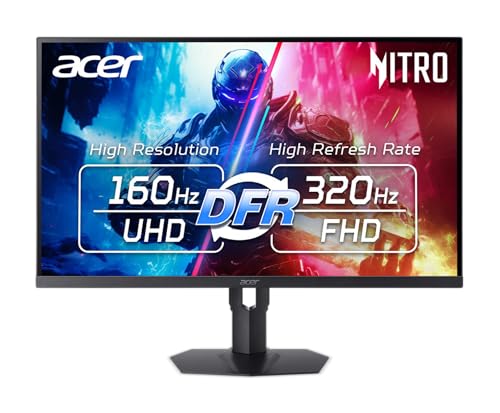
| 9.8 | 27 inches, 16:9, flat | 3840 x 2160 (4K); 1920 x 1080 in dual mode | 160Hz at 4K, 320Hz at 1080p (DFR dual mode) | IPS, Mini LED with 1,152 dimming zones, 95% DCI-P3 | |
| 9.5 | 27 in, flat | 3840 x 2160 (or 1920 x 1080 in dual mode) | 160Hz at 4K, 320Hz at 1080p | SS IPS, 350 nits, 1000:1, DisplayHDR 400, 95% DCI-P3 | |
| 9.3 | 27-inch flat, about 163 PPI | 3840 x 2160 (4K UHD) | 160Hz over DisplayPort and HDMI 2.1; FreeSync, G-Sync | Fast IPS (AUO), about 400 nits, 1,107:1 measured, HDR400 | |
| 8.1 | 32-inch flat, about 138 PPI | 3840 x 2160 (4K UHD) | 70Hz over DisplayPort, 60Hz over HDMI; 7ms GtG | IPS, 350 nits, 1,000:1, 100% sRGB claimed (99.6% measured) | |
| 7.8 | 27-inch flat, about 163 PPI | 3840 x 2160 (4K UHD) | 60Hz, 4ms GtG, Adaptive-Sync | IPS, 300 nits, 1,000:1, 98% DCI-P3, 8-bit + FRC | |
| 7.5 | 27-inch flat, about 163 PPI | 3840 x 2160 (4K UHD) | 70Hz over DisplayPort, 60Hz over HDMI 2.0; 5ms GtG | IPS, 350 nits, 1,000:1, 99% sRGB, 8-bit, matte coating | |
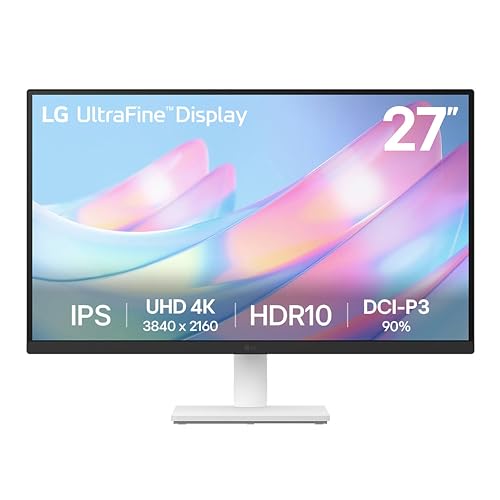
| 7.4 | 27 in, flat | 3840 x 2160 (4K UHD) | 60Hz | IPS, 300 nits, 1000:1, HDR10, 90% DCI-P3 |
1. Dell S2725QS (Dell S 27 4K / 27 Plus 4K): Best 4K Monitor under $300 Overall
Most cheap 4K screens make you choose between work and play. This one doesn't, and that's why it leads. The 27-inch IPS runs 4K at 120Hz, PC Monitors measured accurate sRGB color (Delta E 1.11) and flicker-free dimming, and both HDMI ports are genuine HDMI 2.1.
Say you spend the morning editing a slide deck full of chart labels that would blur on a 1080p panel. After dinner you switch inputs to the PS5, and it runs 4K at 120Hz with VRR and ALLM. An HDMI cable comes in the box, the power supply is internal, and the two 5W speakers do fine for a casual game. A few owners in RTINGS's discussion found colors looked green or warm out of the box and fixed it with custom settings; HDR locks those settings.
The trade-off is speed. Even its best overdrive mode averages about 8 ms, so fast shooters trail, and an Xbox can't run 1440p at 120Hz on it. So would we buy it? For work plus console nights, yes. Its USB-C twin is in our rundown of Dell's 4K Plus models and the rest of its line-up, and the Acer XV275K P5 (#2) adds USB-C and 160Hz.

Best for: Buyers who want 4K text for work and 4K 120Hz for a PS5 or Xbox

Skip it if: You need USB-C laptop charging or more than 120Hz. The Acer Nitro XV275K P5 (#2) is the better pick.
Pros
- Sharp 4K text and detail at 27 inches
- True HDMI 2.1: 4K 120Hz with VRR on PS5 and Xbox
- Accurate sRGB mode out of the box
- Fully adjustable stand with pivot
- Flicker-free backlight with low input lag
- Speakers better than most monitor speakers
Cons
- Slow pixel response blurs fast motion
- HDR is basic: no local dimming
- Stand wobbles a little
- No USB ports or headphone jack
- No 1440p 120Hz mode on Xbox
Hands-on reviews behind this pick
- RTINGS
Show the verdict
A budget-friendly 4K work monitor with accurate colors and good brightness that adds 120Hz and HDMI 2.1 for console play; barebones on extras, a little wobbly, and weak in HDR.
- Creative Bloq
Show the verdict
An easy, affordable way into 4K: sharp, accurate out of the box and smooth at 120Hz for casual gaming, with a smart white design, let down mainly by harsh speakers and an awkward pivot.
- PC Monitors
Show the verdict
An aggressively priced 4K all-rounder with respectable IPS contrast, strong color consistency and good speakers, but its pixel response is too slow to be a true 120Hz gaming monitor.
2. Acer Nitro XV275K P5: Best 4K Mini LED Monitor with USB-C
Here's the one that ticks every box on the spec sheet, and handles most of them well. It's the only pick here with USB-C, and that port charges a laptop at 90W while carrying video and a USB hub. Add a KVM, two HDMI 2.1 ports and a Mini LED backlight with 1,152 zones, and you get a desk hub and a gaming screen in one.
Picture your workday running off that single cable. At 7pm the KVM hands the keyboard and mouse to your gaming PC, and the 1080p mode at 320Hz takes over for a round of shooters. Gizbot ran it daily for over a month with an RTX 5070 PC and a PS5 and hit no HDMI trouble. HDMI, USB-C and USB cables are in the box.
But the picture has quirks. Dimming only works in HDR, so SDR blacks look gray, and RTINGS saw haloing plus a bug that raises blacks the first time HDR turns on, until you switch picture modes. The tripod stand is wide, too. So would we buy it? For a laptop-plus-gaming desk, yes. Don't need USB-C? The Gigabyte G27U (#3) has the same dual mode on a smaller base.
Best for: Laptop users who also game and want USB-C charging, HDMI 2.1 and high refresh in one 4K screen
Skip it if: You don't need USB-C and want a smaller stand. The Gigabyte G27U (#3) is the better pick.
Pros
- Sharp 4K text for work, 320Hz 1080p mode for fast games
- Very bright in HDR thanks to the Mini LED backlight
- USB-C with 90W charging and a built-in KVM switch
- HDMI 2.1 suits PS5 and Xbox at high refresh rates
- Low input lag in both 4K and 1080p modes
- Sturdy stand with height, tilt, swivel and pivot
Cons
- Local dimming works only in HDR; SDR blacks look gray
- Visible haloing around subtitles and bright objects
- Clunky OSD buttons under the bottom bezel
- Needs calibration for accurate color work
- Wide tripod stand takes up a lot of desk space
Hands-on reviews behind this pick
 Gizbot
Show the verdict
After a month as a daily monitor it proved a strong 4K, Mini LED, 160Hz all-rounder for gaming, work and video, though gaming-first buyers happy at 1440p may prefer an OLED.
- RTINGS
Show the verdict
A solid mid-range 4K Mini LED gaming monitor with a useful dual mode and USB-C hub, held back by HDR-only local dimming, black crush and haloing that leave it behind pricier rivals.
- RTINGS Computer
Show the verdict
Not the best monitor out there, but a versatile jack-of-all-trades that punches above its weight on value, with a clear gaming upgrade over the P3 and weaker local dimming.
3. Gigabyte G27U: Best 4K Gaming Monitor with Dual Mode
If games are the main job, this is the screen we'd point you to. The G27U runs 4K at 160Hz for single-player worlds, and its dual mode switches to 1080p at 320Hz when you want every frame in a shooter. TweakTown called the switch a real step down in sharpness, but a useful one to have.
So picture a Saturday spent wandering a gorgeous open world at 4K. Friends come online, you press the Tactical Switch hotkey, and the same screen runs at 320Hz for a fast match. Impulse Gamer expected 1080p to look blocky at 27 inches and found it smooth and clean instead. The stand gives 130mm of height on a base about 2mm thin, so your mouse keeps its room.
And the gaps are real. There's no USB-C or hub and no speakers, and the downward-facing ports meant GadgetGuy pivoted the screen just to plug in. HDR adds little, so SDR is the better way to play. So would we buy it? For gaming, yes. Need laptop charging? The Acer XV275K P5 (#2) adds USB-C and a KVM.
Best for: PC and console gamers who want 4K for single-player and 320Hz for competitive play
Skip it if: You dock a laptop and want USB-C charging. The Acer Nitro XV275K P5 (#2) is the better pick.
Pros
- Sharp 4K at 160Hz with a 320Hz 1080p mode on a hotkey
- Full height, tilt, swivel and pivot stand
- Slim, compact base saves desk space
- Two HDMI 2.1 ports for consoles
- Wide color for an IPS gaming panel
Cons
- DisplayHDR 400 adds little real HDR punch
- No USB-C, no USB hub, no KVM
- No built-in speakers
- IPS contrast and blacks lag behind OLED
- OSD controls can feel fiddly
Hands-on reviews behind this pick
- TweakTown
Show the verdict
An excellent all-round gaming monitor: sharp 4K at 160Hz plus a 1080p 320Hz mode on demand and a sturdy, adjustable stand, held back by basic DisplayHDR 400 and no USB-C.
- GadgetGuy
Show the verdict
A smart pick for gamers who want both worlds: crisp 4K at 160Hz or 320Hz at 1080p on a hotkey plus shooter aids, held back by IPS contrast, no USB hub and fiddly menus.
- Impulse Gamer
Show the verdict
Strong value for PC players stepping up from a laptop or handheld: a 320Hz mode that stayed smooth and clean and a compact base, though IPS blacks felt flat next to OLED.
4. KTC H27P22S: Best Fast 4K Monitor for PC and Console
Think of this as the plain-wrapper speed pick. KTC skips speakers and a USB hub and spends the money on a 4K Fast IPS panel at 160Hz, four video inputs and a stand with height, swivel and pivot. Notebookcheck measured about 400 nits, 1,107:1 contrast and no PWM flicker.
Say you're stuck on a boss and pull up a long written guide. Rotate the screen to portrait, read the whole page without scrolling, then turn it back for the next attempt. On a PC, KTC recommends DisplayPort for full 4K at 160Hz, and its HDMI 2.1 ports run consoles at 4K 120Hz. Notebookcheck's box had an HDMI cable; The Gadgeteer's also had a DisplayPort one.
Here's the catch for Apple fans. On a MacBook Pro, The Gadgeteer got only 60Hz and sometimes no picture until replugging. Color also ships cool, and brightness fell off toward the left edge of Notebookcheck's unit. So would we buy it? For a Windows PC or console, yes. On a Mac, the Dell S2725QS (#1) is the safer screen.
Best for: Windows PC and console players who want 4K above 120Hz and a fully adjustable stand
Skip it if: You use a Mac or want accurate color without calibrating. The Dell S2725QS (#1) is the better pick.
Pros
- 4K at 160Hz for a budget price
- Bright panel, about 400 nits measured
- Height, swivel, tilt and pivot stand
- Two HDMI 2.1 and two DisplayPort inputs
- No PWM flicker
Cons
- Not calibrated out of the box
- No speakers or USB hub
- Uneven brightness toward the left edge
- Mac connection glitches in one review
Hands-on reviews behind this pick
 Notebookcheck
Show the verdict
A no-frills but genuinely good 4K IPS gaming monitor for little money: bright, quick enough at 160Hz and very adjustable, with no speakers, uneven lighting and color that needs calibrating.
- The Gadgeteer
Show the verdict
Highly recommended for Windows PC gamers who want a flexible, well-designed 4K screen with deep menus, but not for Mac owners after display dropouts and a 60Hz cap on a MacBook Pro.
- Nicolas11x12 English
Show the verdict
Calls it one of the best 4K 160Hz monitors for the money, matching a pricier LG 4K screen he owns for image quality, with only dust specks under the panel and no hub or speakers against it.
5. Sceptre U325W-UPT (32in 4K): Best Cheap 32-inch 4K Monitor
Want the biggest 4K screen for the least money? This is it. The Sceptre stretches 4K across 32 inches of IPS, and TV Chef measured near-full sRGB, about 93% DCI-P3 and low input lag. Text stays crisp at about 138 PPI, only a little softer than the 27-inch picks.
Imagine laying out a family photo album on a Sunday afternoon. The pages sit full-size in the middle with your folders down the side, and nothing feels cramped. Two DisplayPort and two HDMI inputs mean a PC, a work laptop and a console can all stay plugged in, though consoles run at 4K 60Hz over HDMI. A DisplayPort cable comes in the box; an HDMI one doesn't.
The savings show elsewhere. The metal stand is stable but only tilts, fast motion smears, the speakers are quiet, and TV Chef's unit had a short line of stuck pixels, so check yours on arrival. So would we buy it? For a home office or movie desk, yes. Short on desk depth? The Sceptre U275W-UPT (#7) is its 27-inch sibling.
Best for: Home office users and movie watchers who want a big 32-inch 4K screen cheaply
Skip it if: Your desk is shallow and 32 inches feels too big. The Sceptre U275W-UPT (#7) is the better pick.
Pros
- Big 32-inch 4K screen with sharp, clear text
- Wide color: about 93% DCI-P3 measured
- Two DisplayPort and two HDMI inputs
- 70Hz with adaptive sync for casual games
- Wide IPS viewing angles for shared viewing
- Low input lag in one hands-on test
Cons
- Tilt-only stand, no height or swivel
- Visible ghosting in fast motion
- Quiet, rear-firing speakers
- Some IPS glow in a dark room
- No HDMI cable in the box
- No sRGB-labelled picture mode
Hands-on reviews behind this pick
- TV Chef
Show the verdict
Nothing else came close on value for a 32in 4K IPS screen: crisp text, good measured color and low input lag, though the stand only tilts, motion smears and the speakers are quiet.
- 1 Up Nerdcore
Show the verdict
An easy pick for creators and editors on a budget who work in sRGB and game now and then: vibrant color, clear text and a solid stand, with only minor gripes like the button menu.
6. MSI PRO MP273U: Best Budget 4K Monitor for Photo Hobbyists
Photo hobbyists, this is your budget screen. MSI claims 98% DCI-P3 and 93% Adobe RGB, so landscapes and sunsets look rich, and the 27-inch 4K panel is sharp enough to check focus properly. Level1Techs bought its own unit and saw good sRGB and gamma results without calibration.
So say you're sorting a weekend of camera shots on Monday night. At 100% zoom you can see which frames are really sharp before you delete the rest. 4News spent weeks on it with Photoshop, Blender and Premiere and found the factory color good enough to start editing. Use the sRGB preset for photos headed to the web, and turn off the Eco mode it ships with for more brightness.
But the build is basic: a plastic tilt-only stand, an external brick, 75mm VESA holes and no DisplayPort cable. 4News's unit also had heavy backlight bleed, which matters if you edit dark footage. So would we buy it? For hobby editing at a desk, yes. Want a stand that raises and pivots? The Dell S2725QS (#1) has one.
Best for: Hobby photo and video editors who want wide color on a budget
Skip it if: You want a height-adjustable stand or more than 60Hz. The Dell S2725QS (#1) is the better pick.
Pros
- Sharp 4K text on a 27-inch screen
- Wide color gamut claimed for the price
- Well-featured, mostly bug-free on-screen menu
- Did well in sRGB and Adobe gamma tests
- Adaptive-Sync over HDMI and DisplayPort
- Light and easy to VESA mount
Cons
- Plastic tilt-only stand
- Only 75 x 75mm VESA holes
- External power brick
- No DisplayPort cable in the box
- Backlight bleed on one review unit
- Fiddly button menu, no joystick
Hands-on reviews behind this pick
- 4News
Show the verdict
A recommended work screen for budget creators: sharp 4K, vivid wide-gamut color and decent speakers, held back by a 60Hz cap, a tilt-only stand and heavy bleed on its unit.
- Level1Techs
Show the verdict
Surprisingly good for how little it costs: decent response, solid sRGB results and a rich menu make it a near tie with the Acer, with a plastic stand and external brick as the main knocks.
7. Sceptre U275W-UPT (27in 4K): Best Cheap 27-inch 4K Monitor for Office Work
On the tightest budget, this is the 4K screen we'd buy for school or office work. It puts 4K on a 27-inch IPS panel, so text is as dense as on the Dell at #1, and Monitornerds measured 341 nits with a Delta E of 2.88 out of the box.
Picture finals week. Your thesis fills one half of the screen and a source PDF the other, both readable without zooming, whether it's 2am or the sun is pouring through the window. The metal stand is solid, a DisplayPort cable is in the box, and DisplayPort runs it at 70Hz for slightly smoother scrolling. The VESA 100 mount lets you add an arm later.
Mind the ports, though. Only the HDMI 2.0 port runs 4K at 60Hz; the two HDMI 1.4 ports stop at 30Hz, which feels sluggish. The speakers are weak and Sceptre lists no adaptive sync. So would we buy it? For writing and spreadsheets, yes. Edit photos too? The MSI PRO MP273U (#6) has wider color.
Best for: Students and office workers who want the cheapest sharp 4K screen
Skip it if: You edit photos and want wider color. The MSI PRO MP273U (#6) is the better pick.
Pros
- Sharp 4K text and detail at 27 inches
- Bright enough for sunny rooms, over 340 nits measured
- Solid metal stand and clean, slim design
- 70Hz over DisplayPort is a touch smoother than 60Hz
- Low input lag for a budget 4K screen
- VESA mount and flicker-free backlight
Cons
- Tilt-only stand, no height adjustment
- Two of three HDMI ports are limited to 4K 30Hz
- Weak, tinny built-in speakers
- Only about 1,000:1 contrast, gray blacks at night
- No official FreeSync or G-Sync support listed
- Backlight bleed and IPS glow vary by unit
Hands-on reviews behind this pick
- Monitornerds
Show the verdict
A fantastic deal: decent IPS image, sturdy build and a 70Hz overclock for very little, held back by two 4K 30Hz HDMI 1.4 ports, low contrast and a tilt-only stand.
- Type-C Tech Reviews
Show the verdict
Impressed by how bright, sharp and well built it is for so little, with no glow on its unit; the catch is higher input lag than LG rivals, no VRR and two 4K 30Hz HDMI ports.
8. LG UltraFine 27US500-W: Best Borderless 4K Monitor for Video Editing
This one's for the evening editor who wants a tidy, sharp screen and nothing extra. LG's 27US500-W is a plain 27-inch 4K IPS at 60Hz, with HDR10, 90% DCI-P3 claimed and thin bezels on three sides. Grant Butler bought one with his own money and was still editing video on it about six months later.
Say it's Sunday night and you're trimming a weekend vlog. The full timeline runs along the bottom while the preview stays sharp above it, so you're not zooming in and out. A joystick under the screen handles the menu, setup takes about five minutes with a few screws, and an HDMI cable comes in the box. Showmetech found the bundled LG Switch app buggy, so you can skip installing it.
The gaps are speakers, USB-C and height. There are none of the first two, and the stand only tilts. Showmetech also saw strong reflections in a room with lots of windows. So would we buy it? For editing with headphones on, yes. Want speakers and a stand that raises? The Dell S2725QS (#1) has both.
Best for: Hobby video editors and office users who want a clean, sharp 4K screen with three inputs
Skip it if: You want speakers and a height-adjustable stand. The Dell S2725QS (#1) is the better pick.
Pros
- Sharp 4K that suits video editing timelines
- Thin three-side borderless bezels
- DisplayPort plus two HDMI inputs
- Joystick menu control and Reader Mode
- Bright enough for a lit room at 300 nits
Cons
- No built-in speakers
- Tilt-only stand, no height adjustment
- 60Hz only
- No USB-C input
- Screen reflects in bright rooms
Hands-on reviews behind this pick
- Showmetech
Show the verdict
An excellent entry-level 4K monitor for image and video work: good colors, solid plastic build and enough ports, though it lacks height adjustment and speakers and LG Switch app is buggy.
- Grant Butler
Show the verdict
Bought with his own money and kept it after about six months of video editing: sharp 4K, fine brightness and color, but no speakers, a basic fixed stand and no USB-C.
Best 4K monitors under $300 buying guide for 2027
Is a 4K monitor under $300 worth it over 1440p?
For work, reading and photos, yes. A 4K panel has more than twice the pixels of 1440p, so on a 27-inch screen like the Dell S2725QS or Sceptre U275W-UPT you get about 163 PPI, and small text looks printed instead of soft. That's the whole point of this list.
Gaming is where 1440p still wins on a budget. Running new games at 4K takes a strong graphics card, and a cheaper card pushes far more frames at 1440p. If your PC is modest, the dual-mode Gigabyte G27U and Acer XV275K P5 help by dropping to 1080p at 320Hz. And if even this budget feels like a stretch, see the cheapest monitors worth buying.
Do you need a 120Hz 4K monitor, or is 60Hz enough?
For spreadsheets, writing and video, 60Hz is enough. The MSI PRO MP273U and LG 27US500-W run at 60Hz, and both Sceptres reach 70Hz over DisplayPort, which makes scrolling a touch smoother. You won't miss more in a word processor.
Games are different. 120Hz and up makes motion and mouse movement feel far smoother, and consoles can use it too. The Dell S2725QS runs at 120Hz, but its slow pixel response still trails in fast shooters. The Gigabyte G27U, Acer XV275K P5 and KTC H27P22S run at 160Hz, and the first two add a 320Hz mode at 1080p for competitive play. Pay for refresh only if you'll really game on it.
Which budget 4K monitors support PS5 and Xbox 4K 120Hz?
Four picks here do: the Dell S2725QS, Acer Nitro XV275K P5, Gigabyte G27U and KTC H27P22S, all with HDMI 2.1. The Dell's ports run 4K at 120Hz with VRR and ALLM, though an Xbox can't run 1440p at 120Hz on it. Gigabyte lists console 4K 120Hz in 4:2:0 color, a small compromise you'll rarely notice in games.
The Sceptres, MSI and LG stop at 4K 60Hz over HDMI. That's fine for slower games, but a console that supports 120Hz won't get it. Two consoles on one desk? The Acer, Gigabyte and KTC each have two HDMI 2.1 ports, and so does the Dell.
Should a cheap 4K monitor be 27 or 32 inches?
Pick 27 inches for the sharpest text and 32 inches for movies and a bigger canvas. At 27 inches, 4K works out to about 163 PPI, which is why most picks here use that size. The Sceptre U325W-UPT stretches 4K to 32 inches at about 138 PPI, still crisp from a normal sitting distance and much roomier for two windows side by side.
Check your desk before you choose. A 32-inch screen wants more depth, and the Sceptre's stand only tilts, so you may need a VESA arm or a riser. If you want a 32-inch 4K with a better stand or OLED, those cost more, and they're in our main monitor guide, including pricier 4K picks.
Is HDR worth paying for on a 4K monitor under $300?
Mostly no. HDR needs high brightness and local dimming, and most screens in this range have neither. The Gigabyte G27U and KTC H27P22S carry an HDR400 badge, but SDR often looks better on the edge-lit Gigabyte. The Dell S2725QS has no local dimming, and the LG 27US500-W's HDR10 support comes with only 300 nits.
The one exception is the Acer Nitro XV275K P5. Its 1,152-zone Mini LED backlight gets very bright in HDR games and movies. But it halos around subtitles in dark scenes, and dimming turns off in SDR. Buy for sharpness and refresh rate first, and treat HDR as a bonus.
Best 4K monitors under $300: frequently asked questions
What is the best 4K monitor under $300?
For most people it's the Dell S2725QS: a sharp 27-inch 4K IPS at 120Hz with accurate color, a fully adjustable stand and genuine HDMI 2.1 for 4K 120Hz on a PS5 or Xbox. Laptop owners who want USB-C charging should get the Acer Nitro XV275K P5, and gamers who want a 320Hz mode should get the Gigabyte G27U.
Is a cheap 4K monitor worth it over 1440p?
Yes, if you mostly read, write or edit photos. At 27 inches, 4K gives about 163 PPI, so text looks far crisper; the Sceptre U275W-UPT is the cheapest way to get it. If you mainly game on a modest graphics card, 1440p runs faster, or pick the Gigabyte G27U, which can drop to 1080p at 320Hz.
Is 60Hz enough on a 4K monitor, or do I need 120Hz?
60Hz is enough for office work, school and video, which is why the MSI PRO MP273U and LG 27US500-W make sense. If you play games, get 120Hz or more: the Dell S2725QS runs at 120Hz, and the Gigabyte G27U and KTC H27P22S run at 160Hz.
Can a budget 4K monitor run a PS5 or Xbox at 4K 120Hz?
Yes, if it has HDMI 2.1. The Dell S2725QS is the easiest pick, with 4K 120Hz, VRR and ALLM over both HDMI ports. The Acer Nitro XV275K P5, Gigabyte G27U and KTC H27P22S also have two HDMI 2.1 ports each. The Sceptres, MSI and LG stop at 4K 60Hz.
Does a budget 4K monitor work well with a MacBook?
The Dell S2725QS is the safe choice: owners report it working well with an M4 Mac mini and sharp scaled text on Apple Silicon Macs at 4K 120Hz. It has no USB-C, so connect over HDMI or DisplayPort. For one-cable charging, the Acer Nitro XV275K P5 has USB-C. Avoid the KTC H27P22S, which had dropouts on a MacBook Pro.

