
The 10 Best Monitors for Home Office in 2027
One USB-C cable should charge your laptop and wake the screen. We weighed docking, sharp text and stands to pick the best monitors for home office in 2027.

Affiliate Disclosure: As an Amazon Associate, we may earn a commission from qualifying purchases, and it never changes our picks.
Our picks at a glance

10.0/10Score

$349.99
as of Nov 13, 2026, 20:17 UTC

9.7/10Score
$679.95
as of Nov 13, 2026, 20:17 UTC
9.4/10Score
$249.99
as of Nov 13, 2026, 20:17 UTC

9.1/10Score
$428.97
as of Nov 13, 2026, 20:17 UTC

8.8/10Score
$429.00
as of Nov 13, 2026, 20:31 UTC

8.7/10Score
$759.00
as of Nov 13, 2026, 20:17 UTC

8.5/10Score
$746.89 $814.99 Save 8%
as of Nov 13, 2026, 20:17 UTC

7.0/10Score
$329.99 $369.99 Save 11%
as of Nov 13, 2026, 20:17 UTC

7.0/10Score
$159.99 $219.99 Save 27%
as of Nov 13, 2026, 20:17 UTC

7.0/10Score
$1,229.00 $1,299.00 Save 5%
as of Nov 13, 2026, 20:31 UTC
Product prices and availability are accurate as of the date/time indicated and are subject to change. Any price and availability information displayed on Amazon.com at the time of purchase will apply to the purchase of this product.
How we rank best monitors for home office?
One-cable docking comes first, because a monitor that charges your laptop and runs your keyboard, mouse and webcam over one USB-C or Thunderbolt plug ends the morning cable shuffle. Text clarity is next: you'll read email, documents and spreadsheets for eight hours, so sharp text and room for two windows spare your eyes. Design and build counts just as much, since a stand that lifts the screen to eye level saves your neck through back-to-back calls. Value rounds it out, because most of us pay for our own home office gear.
 One-Cable Docking30%
USB-C or Thunderbolt that charges your laptop and runs your peripherals turns a cable mess into one plug.
Text Clarity25%
Text Clarity25%You read documents, email and spreadsheets for hours, so sharp text and enough space reduce squinting.
 Design and Build25%
A height-adjustable, sturdy stand keeps the screen at eye level through a full workday.
 Value20%
Home offices are often self-funded, so the features have to be ones you really use.
Best monitors for home office compared
Swipe sideways to see every spec.
| Product | Score | Size | Resolution | Refresh Rate | Panel |
|---|---|---|---|---|---|
| 10.0 | 27-inch flat | 3840 x 2160 (4K), about 163 PPI | 120Hz, 4ms GtG (Extreme); FreeSync Premium | IPS, 350 nits, 1,500:1, 99% sRGB, no local dimming | |
| 9.7 | 27-inch flat, about 163 PPI | 3840 x 2160 (4K UHD) | 120Hz, VRR 48-120Hz, 5ms GtG (Fast) | Enhanced IPS Black, 3000:1, 450 nits, 99% DCI-P3, matte | |
| 9.4 | 27-inch flat | 2560 x 1440 (QHD), 109 PPI | 144Hz, 1ms MPRT / 4ms GtG (Extreme); FreeSync | IPS, 350 nits, 1,500:1, 99% sRGB, no HDR | |
| 9.1 | 27-inch flat, about 163 PPI | 3840 x 2160 (4K UHD) | 100Hz; no adaptive sync | IPS, 350 nits, 1,500:1, 99% sRGB, semi-matte, no HDR | |
| 8.8 | 27-inch flat | 3840 x 2160 (4K), 163 PPI | 60Hz, 5ms GtG; Adaptive-Sync | IPS, 350 nits, 1,000:1, 99% DCI-P3/Adobe RGB, HDR400 | |
| 8.7 | 34.1 inches, 21:9 ultrawide, 1900R curve | 3440 x 1440 (WQHD), about 110 PPI | 120Hz over DisplayPort or Thunderbolt, 100Hz over HDMI | IPS Black, 2,000:1 contrast, 98% DCI-P3, no HDR | |
| 8.5 | 31.5-inch viewable (32-inch class), flat, about 140 PPI | 3840 x 2160 (4K UHD) | 120Hz with VRR; 5 ms GtG in Fast mode | IPS Black, 3,000:1, 600 nits, 99% DCI-P3, anti-glare | |
| 7.0 | 31.5-inch flat (32-inch class), about 140 PPI | 3840 x 2160 (4K UHD) | 120Hz with VRR; 4 ms in Extreme mode | VA, 300 nits, 3,000:1, 99% sRGB, 95% DCI-P3, HDR10 | |
| 7.0 | 27-inch flat, about 163 PPI | 3840 x 2160 (4K UHD) | 60Hz, 4ms GtG, Adaptive-Sync | IPS, 300 nits, 1,000:1, 98% DCI-P3, 8-bit + FRC | |
| 7.0 | 31.5 inches, 16:9, flat | 6016 x 3384 (6K), 218 PPI | 60Hz with Adaptive-Sync | IPS, matte LuxPixel coating, 98% DCI-P3, DisplayHDR 600 |
1. Dell 27 Plus 4K USB-C Monitor (S2725QC): Best Monitor for Home Office Overall
Start here if your workday runs on one laptop. The S2725QC handles the two jobs a home desk needs most: one USB-C cable charges the laptop at 65W while it carries the picture, and the 27-inch 4K screen keeps text sharp at about 163 pixels per inch. Add 120Hz for smoother scrolling, and it covers the workday without UltraSharp money.
Say your office is a corner of the kitchen. At 8am you set the laptop down, plug in the 1m USB-C cable from the box, and it starts charging as the screen wakes and the mouse dongle on the hub's USB-A port comes alive. The power supply sits inside, so there's no brick to hide. On a Mac? Owners on M2 MacBook Airs report no flicker and smooth 120Hz over that one cable.
But the stand wobbles when you type hard, there's no headphone jack or KVM, and 65W is modest for a big 16-inch laptop. So would we buy it? For one laptop and a tidy desk, yes. Running a power-hungry laptop or a second computer? The Dell U2725QE (#2) is the step up.

Best for: Laptop users working from home who want one-cable charging and sharp 4K text without UltraSharp prices.

Skip it if: You run a power-hungry laptop or switch between two computers. The Dell U2725QE (#2) is the better pick.
Pros
- Sharp 4K text on a 27-inch screen
- 120Hz over HDMI 2.1, 4K 120Hz on consoles
- Low input lag at any refresh rate
- USB-C with 65W charging for laptops
- Accurate sRGB mode for photo work
- Even backlight and usable built-in speakers
- Fully adjustable stand, built-in power supply
Cons
- Blurry motion trails in fast games
- Weak HDR with gray blacks, no local dimming
- Stand wobbles and drifts out of position
- No audio jack and no KVM switch
- No DisplayPort input, USB-C only for DP
- Xbox can't run 1440p at 120Hz
Hands-on reviews behind this pick
- RTINGS
Show the verdict
A cost-friendly 4K work monitor with useful gaming perks: HDMI 2.1, 120Hz and an accurate sRGB mode make it fine for console play after work, but poor motion handling limits it as a gaming screen.
- The AU Review
Show the verdict
One of the most well-rounded 4K monitors for the money: crisp 4K, a smooth 120Hz and single-cable USB-C charging suit work and gaming; speakers are just okay and brightness is limited in direct light.
- Jerry Schulze
Show the verdict
A great budget display for Macs that he bought two of: even backlight, high contrast, smooth 120Hz and surprisingly usable speakers, with only nitpicks like a wobbly stand and 65W charging.
2. Dell UltraSharp 27 4K Thunderbolt Hub Monitor (U2725QE): Best Thunderbolt Monitor for a Home Office
This is the monitor that ties a two-computer desk together. Thunderbolt 4 carries video, data and up to 140W of charging, enough for Created Tech to keep an M4 Max MacBook Pro topped up under load. Behind it sit a 10Gbps hub, 2.5GbE Ethernet, a DisplayPort out and a built-in KVM.
Here's what that looks like at 5pm. Your shift ends, you press one button, and the keyboard, mouse and webcam jump from the company laptop to your own PC in about four seconds. The 4K 120Hz IPS Black panel shows deeper blacks than most IPS screens and stays bright enough for a well-lit office, while the pop-out front ports take a thumb drive without reaching around the back. One quirk: the Ethernet port serves one connected computer at a time.
Noise is the real risk. Several owners in RTINGS's discussion, some on second or third units, report a buzz below about 80 to 90% brightness, so keep the box for a few weeks. Is it worth stepping up from the S2725QC? Only if you'll use the KVM, Ethernet or 140W. If not, the Dell S2725QC (#1) covers one laptop for far less.
Best for: Hybrid workers with a power-hungry laptop, or a work laptop and a personal PC on one desk.
Skip it if: You dock one thin laptop and 65W charges it fine. The Dell S2725QC (#1) is the better pick.
Pros
- Sharp 4K text with a smooth 120Hz desktop
- Thunderbolt 4 with 140W charging on one cable
- Huge hub: 2.5GbE, KVM and pop-out front ports
- Deeper blacks than most IPS monitors
- Bright enough for lit offices, flicker-free
- HDMI 2.1 runs consoles at 4K 120Hz with VRR
- Very ergonomic stand, internal power supply
- 3-year Advanced Exchange warranty
Cons
- Slow response time blurs fast games
- Poor HDR with edge-lit dimming that can't be disabled
- Many owners report buzzing at low brightness
- Pink tint on reflections under strong light
- Stand wobbles on a shaky desk
- No built-in speakers or webcam
- macOS can't daisy-chain over DisplayPort
Hands-on reviews behind this pick
 Expert Reviews
Show the verdict
A capable jack of all trades: transformational ports, a handy KVM and accurate factory-calibrated color, held back by sluggish motion, weak 8-zone HDR and patchy backlight uniformity.
- RTINGS
Show the verdict
A class-leading 27-inch office monitor thanks to 120Hz, VRR, Thunderbolt 4, 140W charging and a KVM, if you can afford it; motion handling is bad and HDR is limited.
- Created Tech
Show the verdict
Close to perfect for MacBook users who want 120Hz: one-cable 140W charging, a huge hub and excellent color, but it games only casually and 4K needs scaling tweaks on macOS.
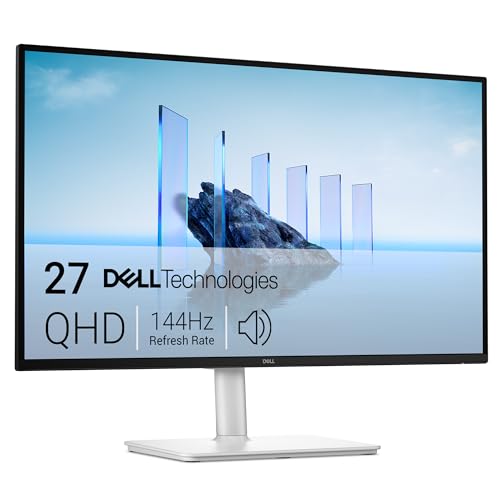
3. Dell 27 Plus QHD USB-C Monitor (S2725DC): Best Budget USB-C Monitor for Home Office
Want one-cable docking and a proper stand for the least money? Take this one. Its USB-C port carries the picture plus up to 65W of charging, the hub adds two USB-A ports and a USB-C, and the stand raises, tilts, swivels and turns to portrait.
Now picture a spare room with a big window. At noon a dim screen washes out, but this one stays bright enough to keep working. It isn't fussy about laptops either: MacBooks, iPads and Windows machines all docked over the same cable for TechRadar. 144Hz smooths scrolling, the front ports pop out for a flash drive, and a 1m USB-C cable is in the box.
The trade-off is sharpness. 1440p on 27 inches works out to 109 pixels per inch, so small fonts look a little soft next to 4K, and the monitor is so light that an arm needs heavy retuning. Our call? On a tight budget, it's the one to get. If you read spreadsheets all day, stretch to the Dell S2725QC (#1).
Best for: Budget home offices in bright rooms that want one-cable laptop docking.
Skip it if: You read small text all day and want it sharper. The Dell S2725QC (#1) is the better pick.
Pros
- One USB-C cable for video, data and 65W laptop charging
- Bright enough for well-lit rooms
- Height, tilt, swivel and pivot stand
- 144Hz with FreeSync for casual gaming
- Built-in speakers and a small USB hub
- Wide IPS viewing angles
Cons
- No HDR support
- Blurry motion for fast games
- 1440p text is softer than 27-inch 4K
- No audio jack
- Less accurate out of the box than its 4K siblings
Hands-on reviews behind this pick
- RTINGS
Show the verdict
A budget-friendly 1440p work monitor that covers the basics well: a bright screen, ergonomic stand and a USB-C hub with laptop charging, though it lacks HDR and motion looks blurry.
- TechRadar
Show the verdict
An Editor's Choice for simple office work: one USB-C cable docks and charges almost any laptop, the 27-inch QHD screen is sharp enough for most, but creatives and power users should look elsewhere.
4. Dell Pro 27 Plus 4K P2725QE: Best 4K Office Monitor with Ethernet
Pick this one if your router lives two rooms away. The P2725QE's USB-C hub adds something the cheaper Dells don't: a wired gigabit Ethernet port, next to 90W of laptop charging and four USB ports.
Say a 90-minute client call keeps freezing on Wi-Fi. Run a network cable to the monitor, dock with one USB-C cable, and the laptop's connection no longer rides on the signal. The 4K panel is sharp at 163 PPI, ITPro measured an average Delta E of 1.7 with very even backlighting, and 100Hz makes scrolling smoother than 60Hz. Dell packs DisplayPort, USB-C and USB-C to USB-A cables, with a three-year warranty.
The downsides are ordinary ones. There are no speakers, no HDR and no adaptive sync, and plain IPS contrast makes a movie look flat. Worth it? If wired internet and 90W matter to you, yes. Want Thunderbolt, a KVM and 140W? Go for the Dell U2725QE (#2).
Best for: Laptop users who want wired Ethernet and 90W charging through one cable.
Skip it if: You need a KVM or 140W for a big laptop. The Dell U2725QE (#2) is the better pick.
Pros
- Sharp 4K text at 163 PPI on a 27-inch screen
- One USB-C cable for video, data and 90W charging
- Built-in Ethernet and a four-port USB hub
- Very accurate color for an office monitor
- Highly adjustable stand with portrait mode
- 100Hz makes scrolling smoother than 60Hz
- Pop-out front ports for quick connections
Cons
- No HDR and only sRGB-class color
- Ordinary IPS contrast looks flat in movies
- No adaptive sync for games
- Fast overdrive mode adds bright fringing
- USB ports are slow 5Gbps
- No speakers, only a slot for an optional soundbar
- 90W charging, versus 140W on UltraSharp hubs
Hands-on reviews behind this pick
- PCMag
Show the verdict
A first-rate productivity monitor with plenty of ports, a superb stand and a high-quality, accurate screen; the older UltraSharp U2723QE still edges it on contrast, color and extra ports.
- ITPro
Show the verdict
A smartly styled business monitor balancing good-enough image quality, connectivity and ergonomics, with crisp, accurate 4K; the high price is its biggest thorn, so check it fits your needs.
- PCWorld
Show the verdict
A sharp, bright 4K screen that is solid but unexciting for work, where the real star is the USB-C hub with Ethernet; a safe pick for text-heavy office and coding work, not for movies or games.
5. ASUS ProArt Display PA279CRV: Best Home Office Monitor for Creative Work
Our pick when your workday mixes spreadsheets with paid creative jobs. The PA279CRV is Calman Verified and ships with a calibration report, and Monitornerds measured an average Delta E of 1.31 out of the box, an error too small for your eye to spot.
Imagine finishing client emails at 11, then spending the afternoon on product photos for an online shop. The same 27-inch 4K screen handles both, one USB-C cable charges the laptop at up to 96W, and the headphone jack takes your earbuds for calls. Need a second screen? Owners in RTINGS's thread run two of them chained at 4K 60Hz over USB-C and DisplayPort.
That same thread has owners reporting eye strain and micro-flicker with text, even on replacement units, so sensitive eyes should buy where returns are easy. Contrast is low, so blacks turn gray at night, and Teoh on Tech measured 92% Adobe RGB, short of the 99% claim. Should you get one? For SDR photo and web work, yes. Want sharper text on a bigger canvas? Look at the ASUS ProArt PA32QCV (#10).
Best for: Freelancers and side-hustlers who mix office work with photo or video editing.
Skip it if: You want sharper text and a bigger canvas for creative work. The ASUS ProArt PA32QCV (#10) is the better pick.
Pros
- Excellent color accuracy before calibration
- Covers nearly all of DCI-P3 and Adobe RGB
- Sharp 4K text at 27 inches
- USB-C docking with up to 96W charging
- DisplayPort daisy chain for a second screen
- Fully adjustable stand with pivot
Cons
- Low contrast, grayish blacks in dark rooms
- HDR400 adds little real HDR impact
- 60Hz only, so motion trails in games
- HDMI 2.0 only
- No KVM switch
- Weak 2W speakers
- Matte coating hazes under strong side light
Hands-on reviews behind this pick
- RTINGS
Show the verdict
A mid-range 4K creator monitor with a great balance of performance and features: outstanding accuracy out of the box and laptop-friendly USB-C, let down mainly by its disappointing contrast.
- Monitornerds
Show the verdict
An Editor's Choice for professionals wanting top-shelf color for less: full wide-gamut coverage, superb accuracy and strong build, with weak HDR, limited contrast and modest brightness.
- Teoh on Tech
Show the verdict
A beautiful 4K display for photo and video editing with good accuracy before and after calibration, though its Adobe RGB coverage fell short of the claim and its matte coating hazes in bright rooms.
6. Dell UltraSharp 34 Curved Thunderbolt Hub Monitor (U3425WE): Best Ultrawide Monitor for Home Office
If a bezel down the middle of two monitors bugs you, this is the fix. The U3425WE swaps them for one curved 34-inch screen and doubles as a Thunderbolt dock.
Say it's the last Sunday of the month. Your budget spreadsheet sits on the left, the bank statement on the right, both at full size, and you tick off every line without flipping windows. One Thunderbolt 4 cable charges the laptop at 90W and lights up 2.5GbE and seven 10Gbps USB ports, and a KVM shares the keyboard with a second computer. Dell packs DisplayPort, HDMI, Thunderbolt and USB cables, plus a calibration report.
As a pure display, though, it's only good. Roughly 110 pixels per inch can't match 4K sharpness, there's no HDR, and the stand won't rotate. Dell's community manager confirmed to one owner that it chains a second monitor only over Thunderbolt 4. Where do we land? For wide spreadsheets and one-cable docking, it's a yes. Want crisper text with similar room? The Dell U3225QE (#7) is the better fit.
Best for: Home workers who keep several windows open and want one Thunderbolt cable to their laptop.
Skip it if: You want sharper text with the same docking. The Dell U3225QE (#7) is the better pick.
Pros
- Thunderbolt 4 dock built in with 90W laptop charging
- Huge 10Gbps USB hub plus 2.5GbE Ethernet
- KVM switch and Thunderbolt daisy chaining
- High contrast for an IPS panel
- 120Hz feels smoother than 60Hz office screens
- Loud, decent built-in speakers
- 3-year warranty with advanced exchange
Cons
- No HDR support
- Text less sharp than 4K or 5K monitors
- Fast motion looks blurry; not a gaming pick
- Color accuracy only average without calibration
- Stand cannot rotate to portrait
- No DisplayPort MST daisy chaining
Hands-on reviews behind this pick
 Digital Trends
Show the verdict
A great fit for the modern workspace, with 120Hz, strong contrast, excellent ports and a KVM switch, though it is expensive, needs calibration and is not especially sharp.
- RTINGS
Show the verdict
One of the most feature-packed work monitors around, with a massive USB hub, Thunderbolt 4 and KVM, but no HDR and blurry motion make it a productivity ultrawide, not a gaming one.
- CNET
Show the verdict
A superb Thunderbolt 4 hub that tidies a desk full of devices, but judged purely as a display it is unremarkable, with modest brightness, no HDR and only average color accuracy.
7. Dell UltraSharp U3225QE: Best 32-inch Monitor for Two Computers
Two computers, one desk and no patience for swapping cables? Here's the answer. The U3225QE is the 32-inch twin of the U2725QE, with the same Thunderbolt 4, 140W charging, 2.5GbE Ethernet and KVM behind a bigger 4K screen.
Picture a hectic Monday. The company laptop runs Teams on the left half through picture-by-picture, your own PC shows a side project on the right, and the KVM moves the mouse between them. At about 140 PPI small fonts stay crisp, and 120Hz smooths scrolling. One setup note: the KVM needs the rear USB-C upstream cable to the second computer. Thunderbolt 4, DisplayPort and USB-A to USB-C cables come in the box, but no HDMI.
Now the honest part. Early buyers in RTINGS's discussion mention returns over coil whine and backlight bleed, one saw a green tint just off-center, and Laptop Mag found the panel shakes on an unsteady desk. Our verdict? For a two-computer desk, buy it from a seller with easy returns. If 27 inches is enough, the Dell U2725QE (#2) does the same job for less.
Best for: Home offices with a work laptop and a personal PC that want 32 inches of 4K room.
Skip it if: 27 inches fits your work fine. The Dell U2725QE (#2) is the better pick for less.
Pros
- Huge hub: TB4, 7 USB ports and Ethernet
- 140W charging for big laptops over one cable
- Built-in KVM for work and personal computers
- Sharp 4K text with room for side-by-side windows
- 120Hz makes scrolling smoother
- Accurate sRGB mode out of the box
- Bright enough and handles reflections well
- Daisy-chain up to two more monitors
Cons
- Blacks still look gray in a dark room
- HDR edge-lit dimming blooms and can't be disabled
- Slow response time blurs fast games
- No webcam or speakers
- Owners report tint shift at slight angles
- Some units have coil whine or backlight bleed
- macOS daisy chaining is limited
- Panel can wobble on a flimsy desk
Hands-on reviews behind this pick
 Laptop Mag
Show the verdict
A solid value: a crisp, vivid IPS Black 4K screen with plenty of charging ports and 140W power delivery, held back by sub-350-nit brightness, no Thunderbolt 5 and a panel that shakes easily.
- RTINGS
Show the verdict
A premium 32-inch 4K productivity monitor with features most office screens lack: 140W Thunderbolt 4, two video outputs and 120Hz. Accurate enough for editing too, but its extras are what you pay for.
- Drew Geraci
Show the verdict
A wonderful monitor for photo and video editing that matched his own calibration out of the box, with great connectivity and 120Hz, though too dim for real HDR work and too slow for serious gaming.
8. Dell 32 Plus 4K S3225QS: Best Big-Screen Home Office Monitor
Working from a desktop PC and just want room? This gives you the most screen on our list for the least money. It's a 32-inch 4K VA panel, so text stays crisp at about 140 PPI and two windows sit side by side easily.
Think of checking a big floor plan or a wide quarterly report. Zoom out, and every label is still readable. After hours, the VA panel's deep blacks make a movie in a dim room look richer than an IPS screen manages. Both HDMI 2.1 inputs and the DisplayPort run 4K at 120Hz, and an HDMI cable comes in the box.
But it's a plain screen, not a hub. With no USB of any kind, a laptop needs a separate dock and gets no charging. The stand only lifts and tilts, colors shift off-center, the warranty is one year rather than three, and RTINGS saw text smear when scrolling white-on-dark pages. Who's it for, then? A desktop PC on a budget. Docking a laptop? The Dell U3225QE (#7) is the 32-inch hub version.
Best for: Desktop PC users who want a big, sharp 32-inch screen on a budget.
Skip it if: You dock a laptop and want charging over one cable. The Dell U3225QE (#7) is the better pick.
Pros
- Big 32-inch 4K screen for little money
- Sharp, easy-to-read text for documents and code
- VA contrast gives deep blacks in a dark room
- 120Hz makes scrolling feel smoother
- HDMI 2.1 runs consoles at 4K 120Hz
- Built-in speakers for basic audio
- Bright enough for most rooms
Cons
- No USB-C or USB hub at all
- Slow response time smears fast games
- Text smears when scrolling dark themes
- Colors and brightness shift off-center
- Stand has no swivel or portrait mode
- Plastic build feels cheap and creaky
- Too dim for real HDR
- Only a 1-year warranty
Hands-on reviews behind this pick
- RTINGS
Show the verdict
A budget 32-inch 4K work monitor with sharp text, good brightness and console-friendly 120Hz HDMI 2.1, held back by slow response and no USB hub; worth it on a tight budget, but the U3225QE is better.
- TweakTown
Show the verdict
A productivity screen that dabbles in gaming: crisp 4K text, rich VA contrast and a roomy 32 inches suit work, but smearing rules out competitive games and the cheap stand and no USB show.
- EFTM
Show the verdict
A basic, no-frills 4K monitor that won't wow you but does its job well: good colors, strong contrast for dark rooms and a size that works for both media and productivity, though USB-C is missed.
9. MSI PRO MP273U: Best Cheap 4K Monitor for Working from Home
Setting up a work-from-home desk for the first time on a tight budget? The MP273U puts 27-inch 4K text in front of you for the kind of money that usually buys 1080p, and that sharpness is what spares your eyes by mid-afternoon.
Picture turning a spare bedroom into an office on a Sunday. You plug the laptop in with the included HDMI cable, switch off the Eco mode it ships with for a brighter picture, and documents look crisp. 4News worked on it for weeks with documents and Photoshop and found the color good enough to start editing. Two 3W speakers and a headphone jack round it out.
The savings show in the build. The plastic stand only tilts, power comes from an external brick, there's no USB-C and it stops at 60Hz, and 4News's unit had heavy backlight bleed. The gut-check: for a first home office, ideally on a monitor arm, it's a smart buy. Only need a small extra display? See our cheap second screens under $150. Want one-cable charging? The Dell S2725QC (#1) earns the extra spend.
Best for: Home workers on a tight budget who want 4K text and will connect by HDMI.
Skip it if: You want one-cable laptop charging and a height-adjustable stand. The Dell S2725QC (#1) is the better pick.
Pros
- Sharp 4K text on a 27-inch screen
- Wide color gamut claimed for the price
- Well-featured, mostly bug-free on-screen menu
- Did well in sRGB and Adobe gamma tests
- Adaptive-Sync over HDMI and DisplayPort
- Light and easy to VESA mount
Cons
- Plastic tilt-only stand
- Only 75 x 75mm VESA holes
- External power brick
- No DisplayPort cable in the box
- Backlight bleed on one review unit
- Fiddly button menu, no joystick
Hands-on reviews behind this pick
- 4News
Show the verdict
A recommended work screen for budget creators: sharp 4K, vivid wide-gamut color and decent speakers, held back by a 60Hz cap, a tilt-only stand and heavy bleed on its unit.
- Level1Techs
Show the verdict
Surprisingly good for how little it costs: decent response, solid sRGB results and a rich menu make it a near tie with the Acer, with a plastic stand and external brick as the main knocks.
10. ASUS ProArt Display 6K PA32QCV: Best 6K Home Office Monitor for Mac
For the Mac owner who reads and writes for a living, this is the sharpest screen we'd recommend. Its 32-inch 6K panel matches the 218 pixels per inch of Apple's Studio Display, on a bigger canvas with far more ports.
Say you're drafting a 30-page proposal at a desk that faces a west window. By 3pm the sun would bounce off glossy glass, but the matte LuxPixel coating soaks it up, and text at 2x scaling stays crisp. An owner who programs on it daily still praises exactly that after three months. One Thunderbolt 4 cable carries 6K and 96W, enough for Adam Talks Tech's 16-inch MacBook Pro, and the second port can chain another screen.
The trade-offs are real, though. It's 60Hz, the matte finish looks hazier than glossy glass, your Mac's brightness and volume keys won't control it, and that same owner found the KVM slow. Is it right for you? For all-day text on a Mac, yes. Want 120Hz and 140W instead? Get the Dell U3225QE (#7), or see our home office picks for MacBook owners.
Best for: Mac users who read and write text all day and want Retina-sharp clarity.
Skip it if: You want 120Hz and 140W charging more than 6K sharpness. The Dell U3225QE (#7) is the better pick.
Pros
- Retina-class 218 PPI on a 32-inch screen
- Thunderbolt 4 with 96W charging and daisy chaining
- Works with Macs and PCs; many more ports than Apple
- Matte coating fights glare in bright rooms
- Full stand: height, tilt, swivel and portrait pivot
- Built-in power supply, KVM and VESA mount
Cons
- Only 60Hz
- Matte coating makes text and images look hazier
- Weak HDR: low contrast and ineffective local dimming
- No Mac keyboard brightness or volume control
- Plastic build feels cheap next to Apple displays
- Poor built-in speakers, no webcam
Hands-on reviews behind this pick
- RTINGS
Show the verdict
A great choice for SDR content creation and productivity in bright rooms, with a big Thunderbolt hub, though its aggressive matte coating hazes text and its HDR is limited.
- Adam Talks Tech
Show the verdict
After weeks of editing on it as his only screen, he calls it the value champion of high-resolution monitors, trading Apple's sleek design, webcam and Mac controls for space and ports.
- MacRumors
Show the verdict
A 6K Retina-grade panel with excellent accuracy and far more connectivity than Apple's displays, the one to pick most of the time unless HDR or premium looks matter most.
Best monitors for home office buying guide for 2027
How much USB-C charging does a home office monitor need?
Match the monitor's charging to the charger your laptop came with, or go higher. Look at the wattage printed on the brick you use today. If it says 65W, a thin laptop is happy on the Dell S2725QC or S2725DC. A bigger brick points to the Dell P2725QE at 90W, or the ASUS ProArt PA279CRV and PA32QCV at 96W each. A big 16-inch laptop running heavy apps wants 140W, which only the Dell U2725QE and U3225QE give here.
So what happens if you go lower? The laptop still charges, just more slowly, and it can run down under a heavy load. Two traps: the Dell S3225QS and MSI PRO MP273U don't charge over USB-C at all, and Thunderbolt only matters if you want its faster hub and daisy chaining. For screens built for gaming and creative jobs too, see the best monitors across work, play and creative jobs.
Is 4K or 1440p better for a work-from-home monitor?
For eight-hour text days on a 27-inch screen, 4K is worth it. It packs about 163 pixels into every inch, so small fonts in email and spreadsheets look crisp instead of slightly fuzzy, and you squint less by late afternoon. The Dell S2725QC, P2725QE and U2725QE and the MSI PRO MP273U all give you that.
But 1440p isn't a mistake. On the Dell S2725DC it works out to 109 pixels per inch, fine for email and video calls on a tight budget. A 32-inch 4K screen spreads its pixels to about 140 per inch, still sharp, with more room. On a Mac, the 6K ASUS ProArt PA32QCV reaches 218 PPI. And one more thing helps long reading sessions: 120Hz on the S2725QC, U2725QE and U3225QE makes scrolling smoother.
What size home office monitor fits your desk?
For most desks, 27 inches is the sweet spot. It holds two documents side by side, fits a small desk, and gives you the widest choice here, from the budget Dell S2725DC to the U2725QE.
Step up to 32 inches if your desk is deep enough to sit back from it. The Dell U3225QE and S3225QS give room for two full windows, and the ASUS ProArt PA32QCV does it in 6K. A 34-inch ultrawide like the Dell U3425WE needs the most width, so measure first.
Size is only half the story, though. The stand decides whether the screen reaches eye level. The S2725QC, P2725QE and U2725QE raise, swivel and pivot, the S3225QS only lifts and tilts, and the MP273U only tilts. This list mixes Dell's Plus, Pro and UltraSharp lines, and we explain how Dell's office monitor series compare in their own guide.
Are ultrawide monitors good for home office work?
Yes, if you live in side-by-side windows. A 34-inch 21:9 screen like the Dell U3425WE fits a spreadsheet and a statement, or a document and a chat window, at full size with no bezel between them. You also stop turning your head between two monitors all day, and its Thunderbolt hub still docks your laptop with one cable.
The trade-offs are worth knowing before you buy. Its 3440 x 1440 resolution gives about 110 pixels per inch, so text is softer than on 4K, and it won't rotate to portrait for long documents. If sharp text matters more than width, the 32-inch 4K Dell U3225QE gives similar room with crisper type. And if you mostly read one document at a time, a 27-inch 4K like the Dell S2725QC does the job for much less.
Which home office monitor features help with two computers?
A KVM switch is the feature to look for. It lets a work laptop and a personal PC share one keyboard, mouse and webcam, so you press a button instead of swapping cables when work wraps up. The Dell U2725QE, U3225QE and U3425WE have one, and so does the ASUS ProArt PA32QCV.
Picture-by-picture goes a step further and shows both computers at once, and the U3225QE's 32 inches suits that best here. Know the quirks first. The U2725QE's Ethernet serves one connected computer at a time, an owner reports the U3225QE drops Ethernet from the Thunderbolt computer when the KVM switches, and the PA32QCV's KVM can be slow. The Dell S2725QC, S2725DC and P2725QE have no KVM, so they suit a single laptop.
Best monitors for home office: frequently asked questions
What is the best monitor for a home office?
For most people working from a laptop, it's the Dell S2725QC: sharp 27-inch 4K, a smooth 120Hz desktop and one USB-C cable with 65W charging. Need 140W, Ethernet and a KVM for two computers? Get the Dell U2725QE. On a tighter budget, the Dell S2725DC still docks with one cable.
Do I need USB-C power delivery and how many watts?
If you work on a laptop, yes, because one cable then charges it and carries the picture. Match the watts to your laptop's charger: 65W suits thin laptops (Dell S2725QC), a 90W-class charger points to the Dell P2725QE or ASUS ProArt PA279CRV, and big 16-inch laptops want the 140W of the Dell U2725QE.
Is 4K worth it for office work or is 1440p enough?
On a 27-inch screen, 4K is worth it if you read text all day, because about 163 pixels per inch keeps small fonts crisp. The Dell S2725QC gives you that at a budget-friendly level. 1440p, like the Dell S2725DC, is fine for email and calls, but text looks softer.
What size monitor is best for working from home?
For most desks, 27 inches, like the Dell S2725QC, holds two documents side by side without crowding a small desk. With more depth, a 32-inch 4K such as the Dell U3225QE gives extra room. For wide spreadsheets on one screen, the 34-inch Dell U3425WE ultrawide is the pick.
Does a monitor with a KVM switch help with two computers?
Yes. A KVM lets a work laptop and a personal PC share one keyboard and mouse, so you switch with a button instead of swapping cables. The Dell U2725QE is our pick for that, switching in about four seconds, and the 32-inch Dell U3225QE adds picture-by-picture to show both computers at once.
